Selling on Biklo from Shopify - step by step
On this page
Biklo for Shopify lists your store's products on Biklo, keeps stock and prices in step, and brings Biklo orders into Shopify, where you accept and ship them. This guide takes you from installing the app to your first order and your first payout.
You need: a Biklo company account, a Shopify store, and a store currency that is the same as your Biklo account's (RON for a seller in Romania).
Start with a sandbox key (
bk_test_…). The sandbox is a copy of Biklo where nothing is real - no buyers, no payments, no courier. You can try everything below, including orders, before you switch to a live key.
1. Install the app
Open the Biklo app's install link (from the Shopify App Store, or the one Biklo sent you) while you are signed in to your Shopify admin, choose your store and Install. Shopify shows what the app may see and do:
- products, inventory and locations - to list your products and keep their stock right;
- orders and fulfilment orders - to bring Biklo orders into Shopify and fulfil them with Biklo's tracking number.
Biklo then appears under Apps in the admin, with its screens in the menu: Categories, Brands, Readiness, Sync, Orders, Payouts and Get help. There is nothing to host or update - the app runs on Biklo's side.
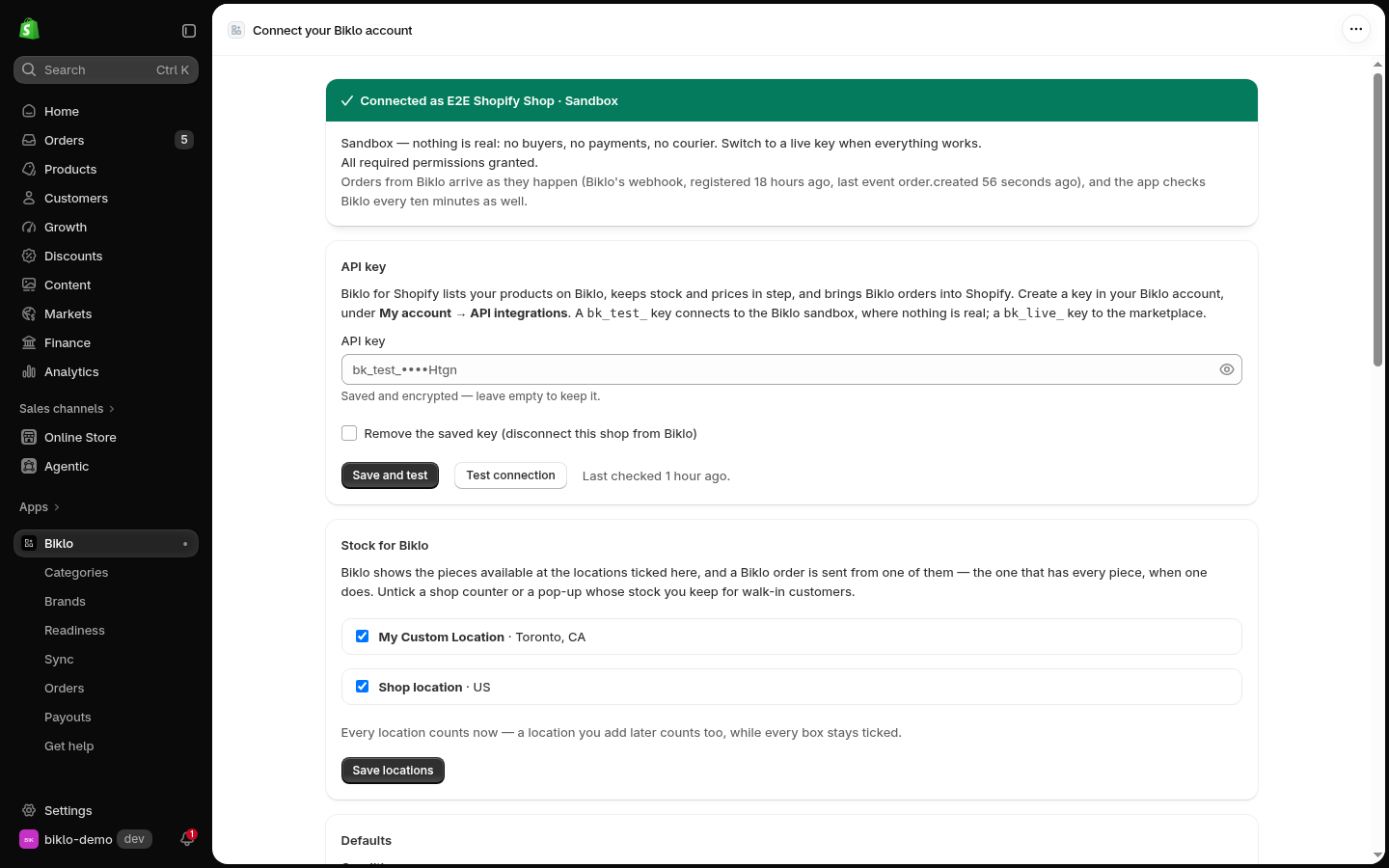
2. Connect your Biklo account
- On biklo.ro: My account → API integrations → New integration. Copy the
bk_test_…key (the sandbox) - orbk_live_…when you go live. - In Shopify: Apps → Biklo (Connect), paste the key in API key, then Save and test.
- You should see Connected as …, Sandbox and All required permissions granted.

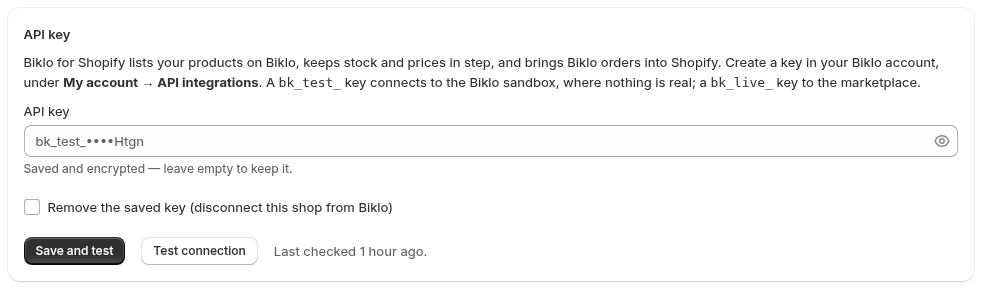
The key is stored encrypted and never shown again - only its last four characters. Orders from Biklo arrive as they happen: the app asks Biklo to tell it about every new order when the sync starts (the banner says when the last one came), and checks Biklo every ten minutes as well.
Stock for Biklo - which locations sell on Biklo
With more than one location in Shopify (Settings → Locations), choose which of them sell on Biklo. Biklo shows the pieces available at the ticked locations only, and a Biklo order is sent from one of them - the one that has every piece, when one does. Untick a shop counter or a pop-up whose stock you keep for walk-in customers.
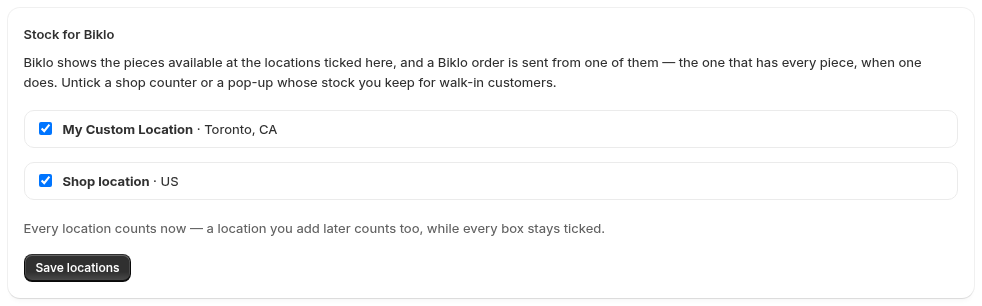
While every box is ticked, every location counts - a location you add later too. The locations are the ones in your Shopify settings:
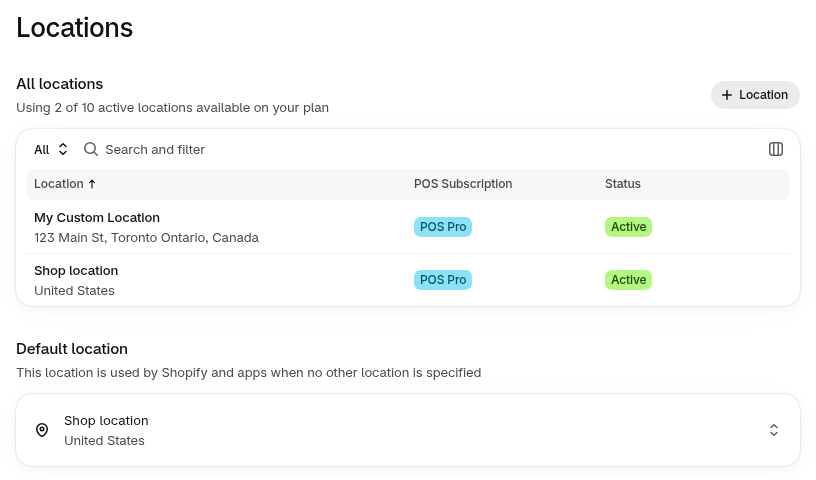
Shopify decides where a new order ships from by itself. When it picks a location that does not sell on Biklo, the app moves the Biklo order to one that does, and the order's Biklo history says so.
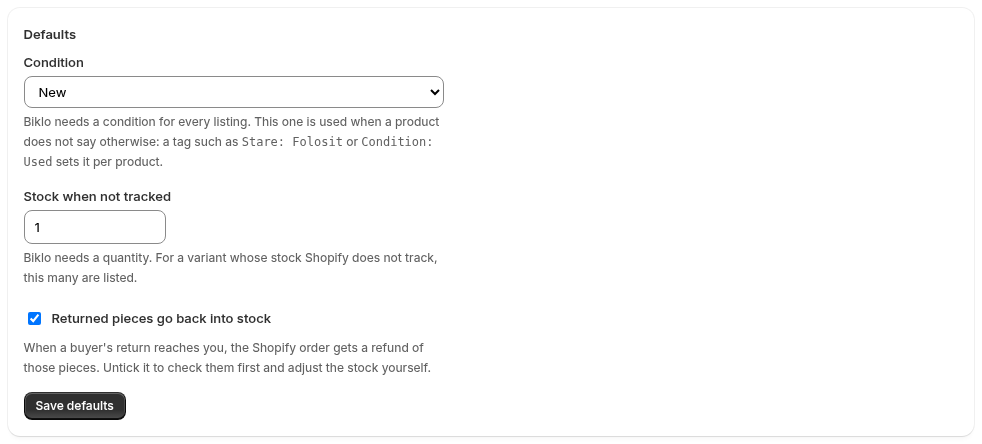
Defaults
- Condition - Biklo needs a condition for every listing. This one is used when a
product does not say otherwise; a tag such as
Stare: FolositorCondition: Usedsets it per product. - Stock when not tracked - for a variant whose stock Shopify does not track.
- Returned pieces go back into stock - untick it to check returns before they go back on sale.
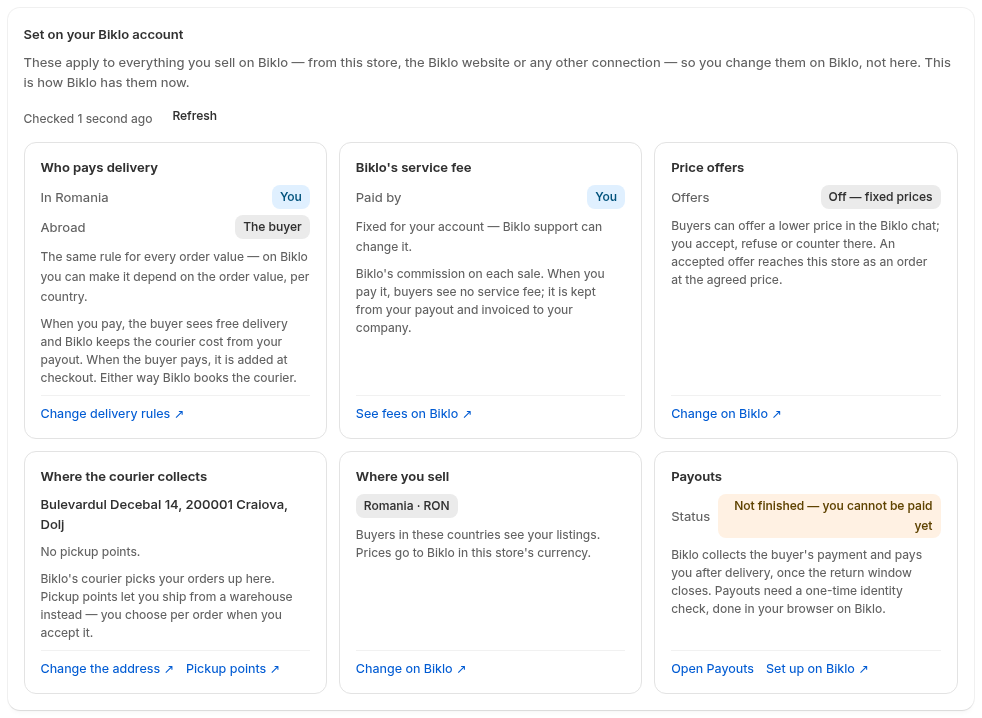
What is set on your Biklo account
Below, the app shows what you set on Biklo itself - not here - because it applies to everything you sell on Biklo: who pays delivery (in your country and abroad), Biklo's service fee, price offers, where the courier collects, the countries you sell to, and your payouts. Each card says what it means and links to the page on Biklo where you change it.
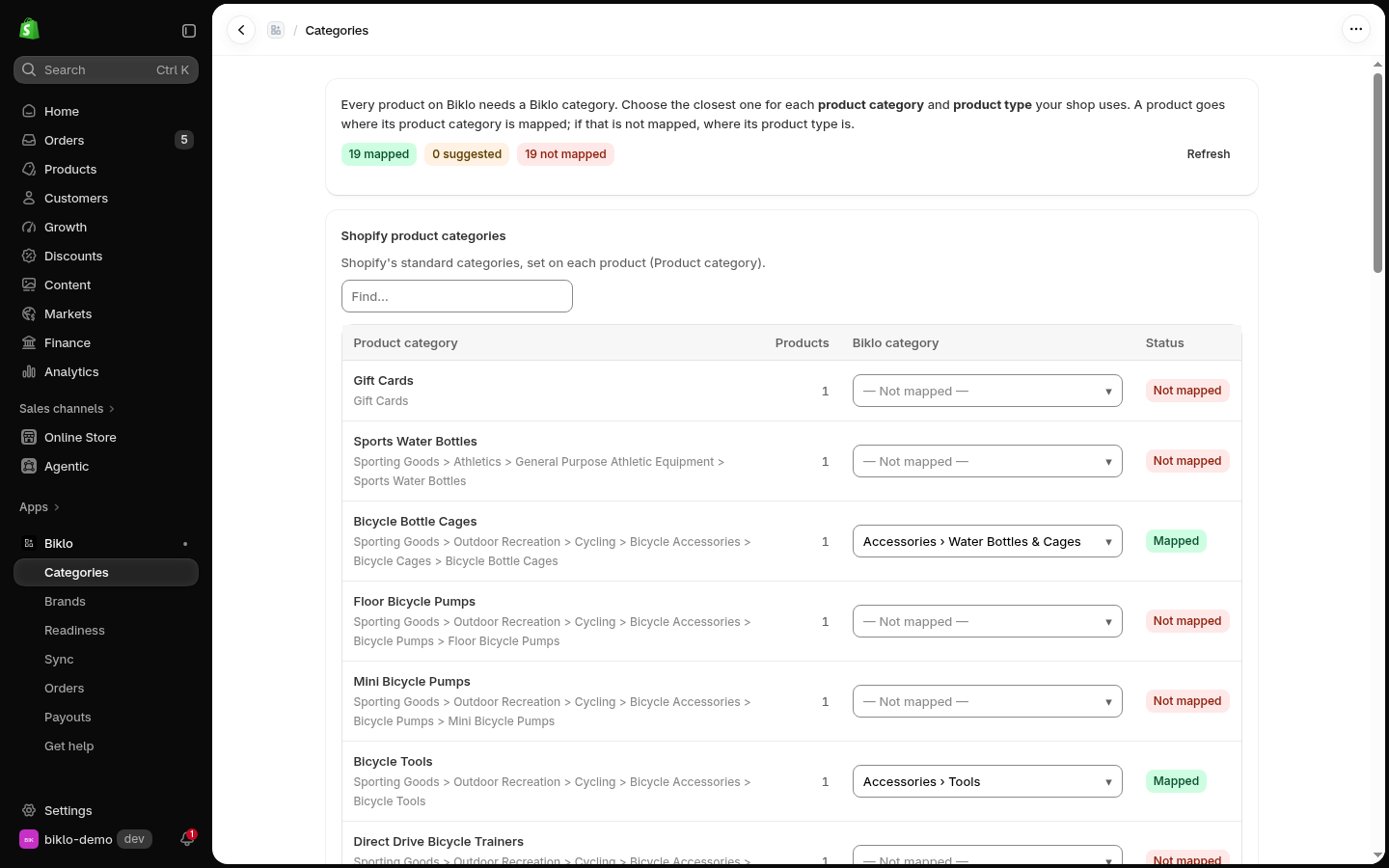
3. Map your categories
Biklo → Categories. Every product on Biklo needs a Biklo category. Choose the closest one for each Shopify product category (Shopify's standard categories) and product type your store uses - type in the picker to search Biklo's categories. A product goes where its product category is mapped; if that is not mapped, where its product type is. The chips on top count what is mapped and what is not.
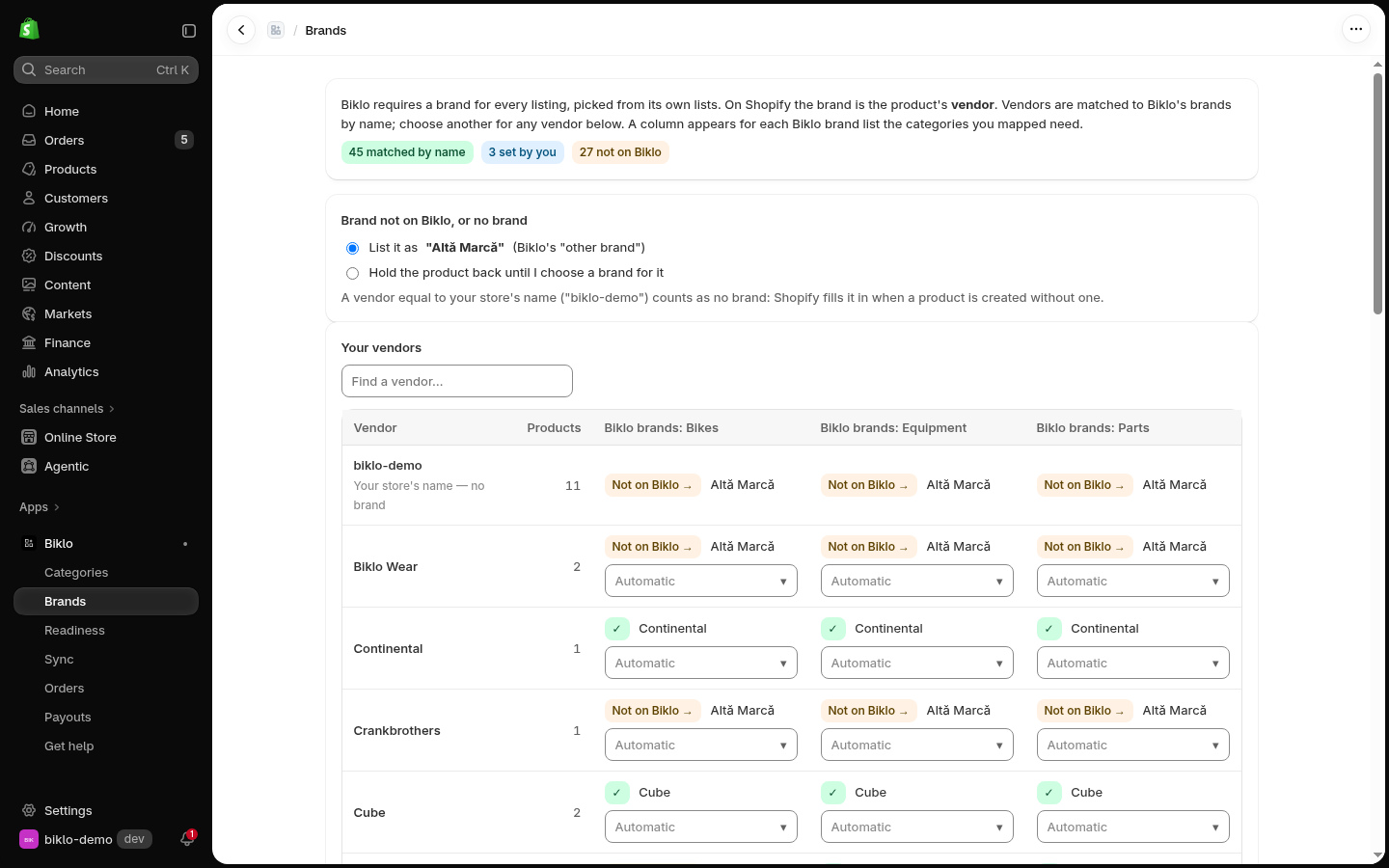
4. Map your brands
Biklo → Brands. On Shopify a product's brand is its vendor. Vendors are matched to Biklo's brands by name; choose another for any vendor, per Biklo brand list. Decide what happens to a brand Biklo does not know: list it as Altă Marcă (Biklo's "other brand"), or hold the product back until you choose one. A vendor equal to your store's name counts as no brand - Shopify fills it in when a product is created without one.
5. Check readiness
Biklo → Readiness checks every product and variant against Biklo's rules, with the same code the sync uses: a title of 8–120 bytes, a description, a category, a brand, a price, a photo. Fix what is listed in Shopify (or in the mappings) and Check again.
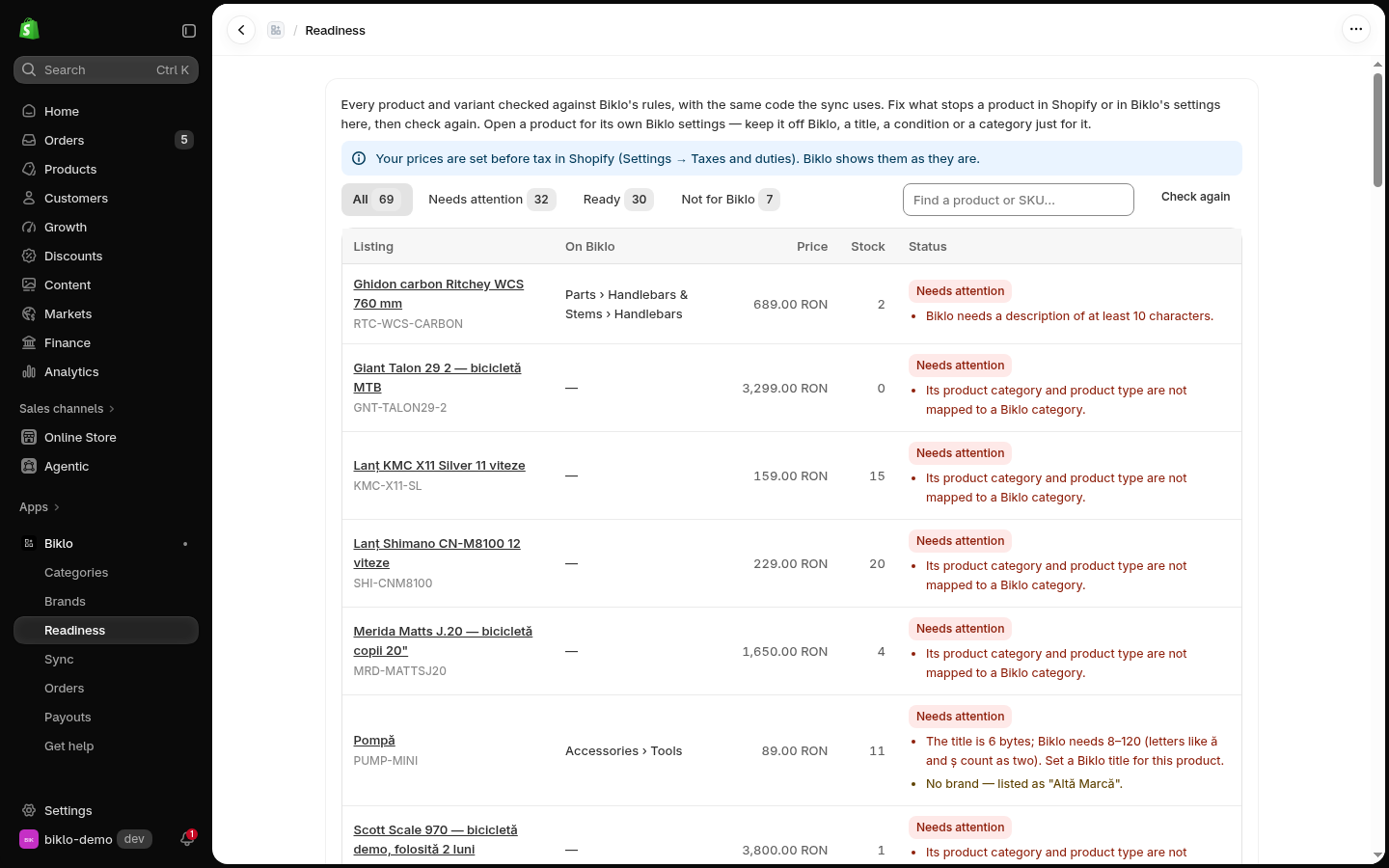
Each variant of a product is its own listing on Biklo - with its own stock and price - and the variants are shown together as one card with a picker.
A product's own Biklo settings
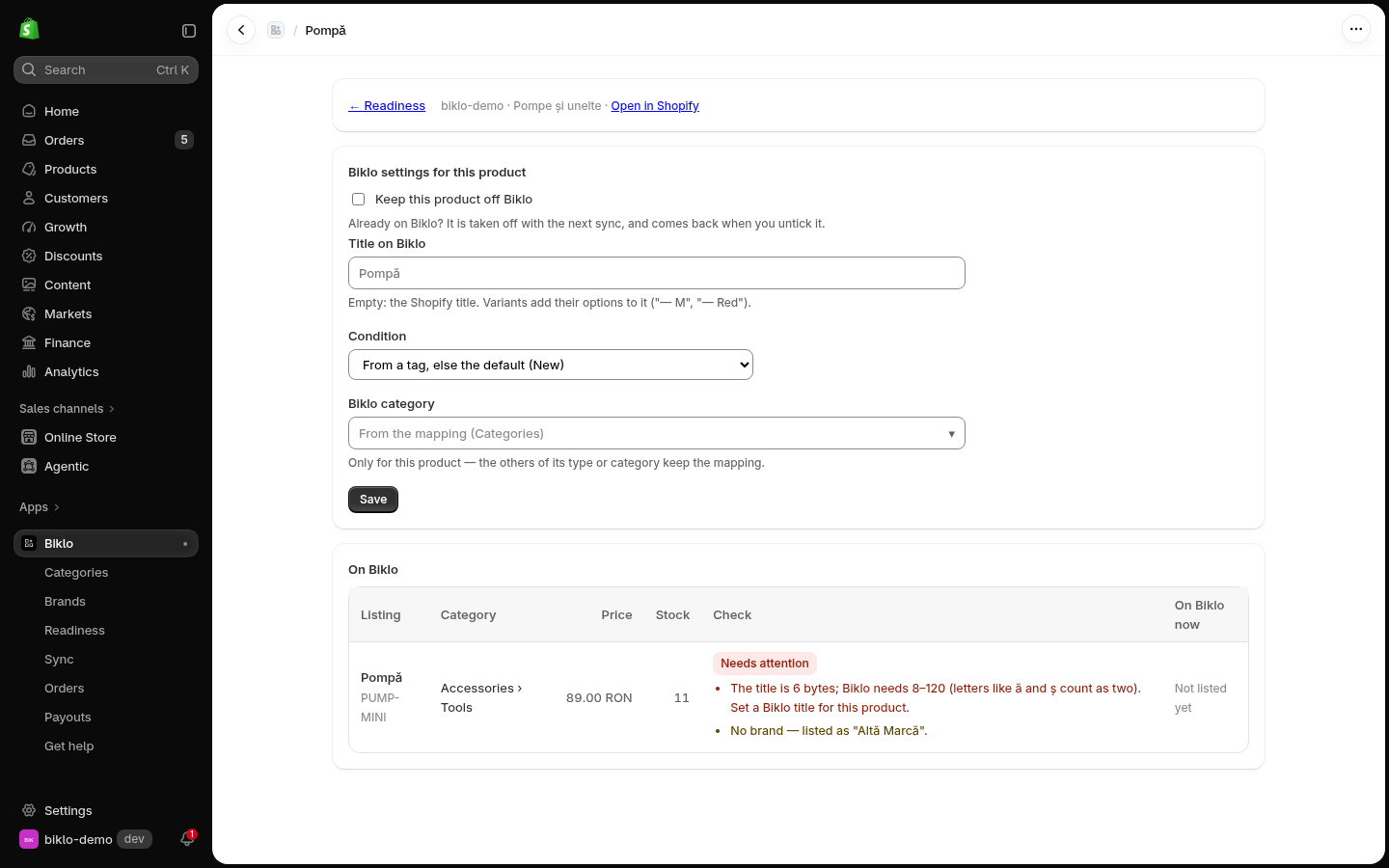
Open a product from Readiness for the settings that apply to it alone: keep it off Biklo, give it a Title on Biklo (here the Shopify title is too short), its own condition, or its own Biklo category.
6. Start the sync
Biklo → Sync → Start syncing. Ready products go to Biklo in the background, with their images. From then on only changes are sent: stock and price as they change (also after an order in your store), everything else when you edit a product. A product you draft, archive or delete is taken off Biklo, and put back when it returns. Changes are picked up every minute; a big change - a stock import, say - goes to Biklo in one go.
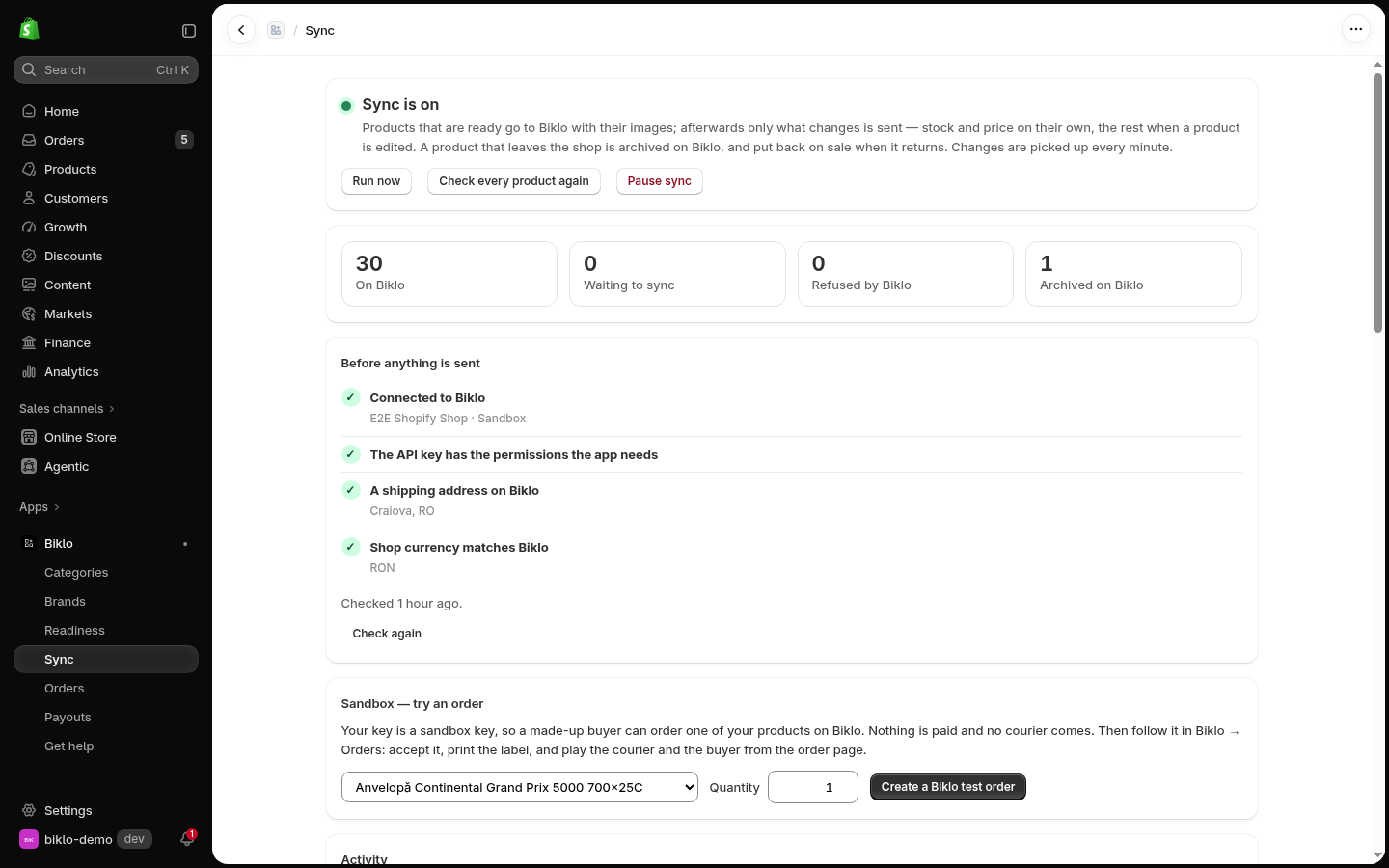
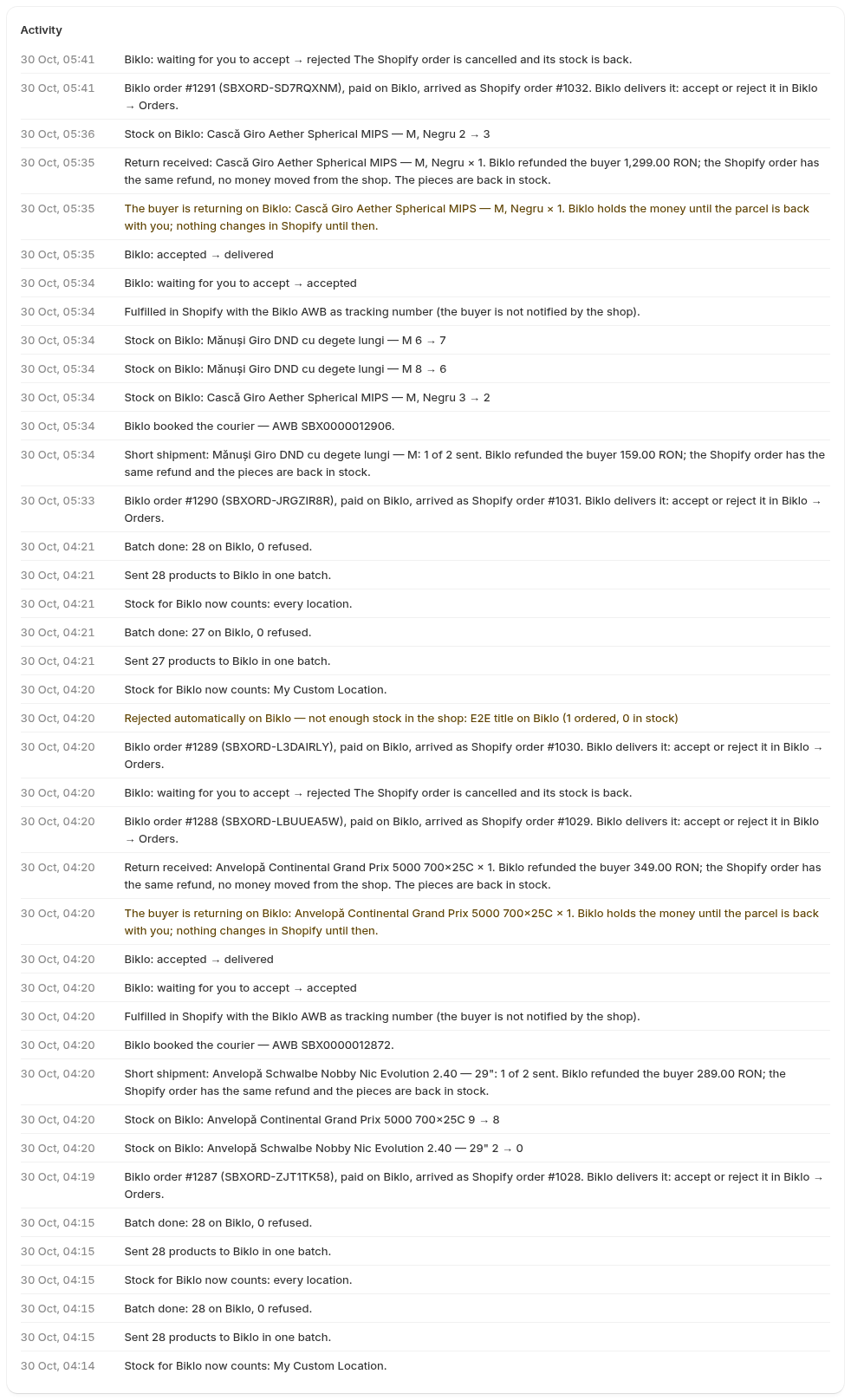
The checks must be green - connected, permissions, a shipping address on Biklo, and the store's currency matching your Biklo account. Activity says, in plain words, everything the sync did:
If Biklo or Shopify does not answer for a while, the sync pauses and carries on by itself - nothing is lost; Run now tries again straight away.
In the sandbox, try an order without a buyer: Sandbox - try an order has a made-up buyer order one of your products.

7. A Biklo order arrives
It appears in Biklo → Orders - what to do next is under its status - and in
Shopify's Orders, already Paid, with the stock taken and the tags Biklo,
Biklo #… and Biklo: <status>, so you can filter Biklo orders in Shopify.
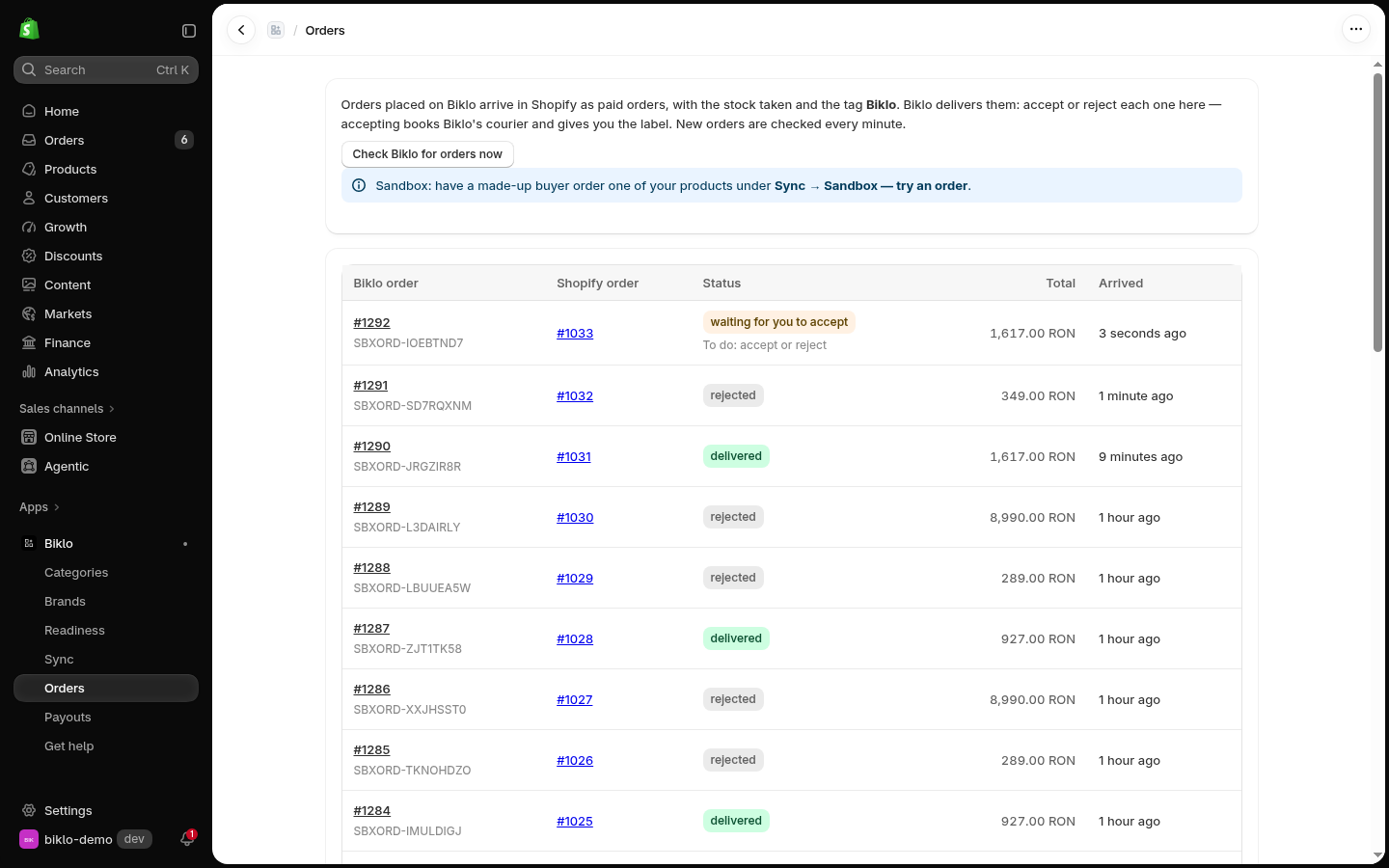
Open it in Biklo → Orders. That page is where you handle it: what the buyer ordered, Review and accept, and the order's Biklo history.
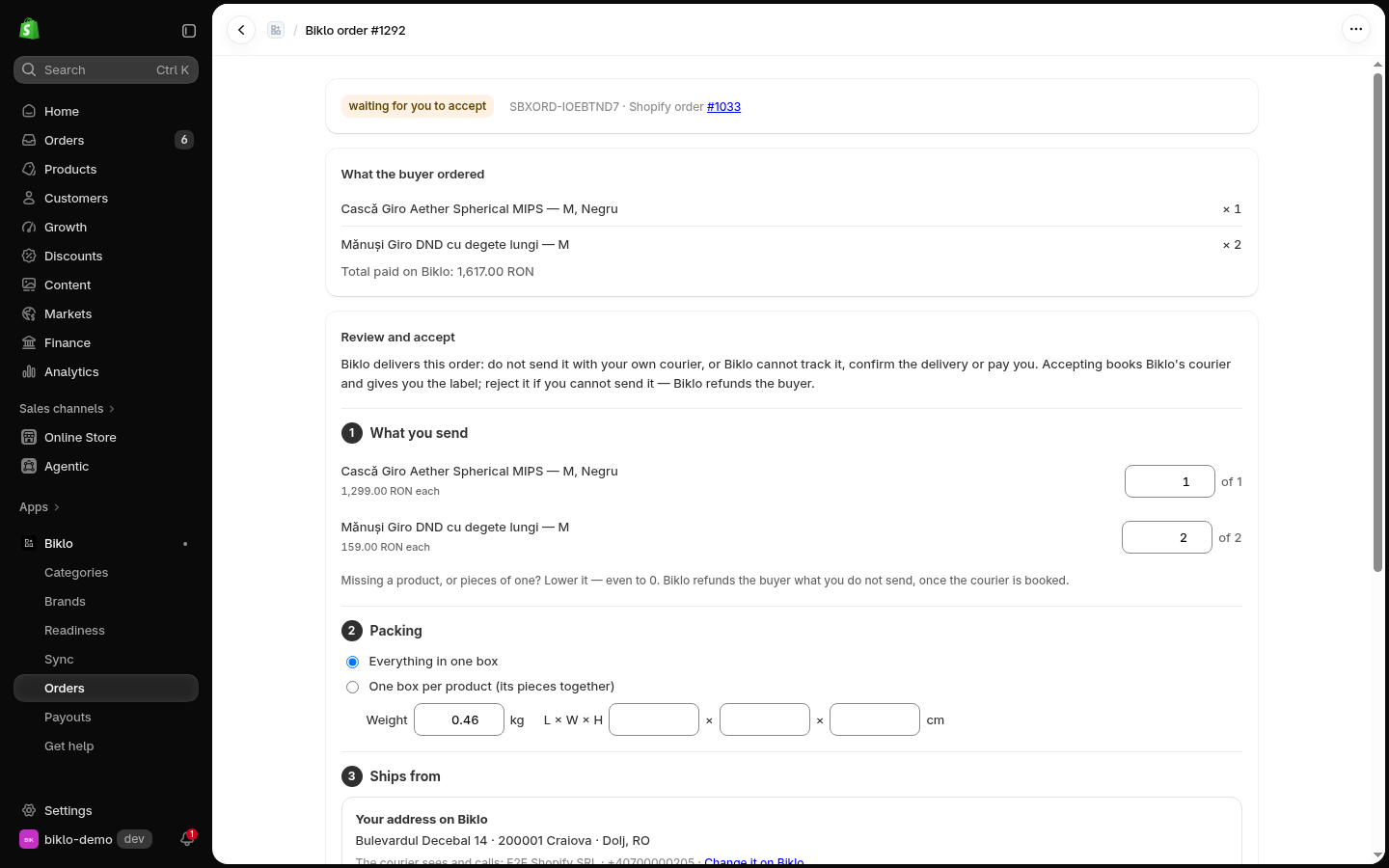
Biklo emails the buyer - Shopify sends the buyer nothing for Biklo orders.
8. Accept it - and check before the courier is booked
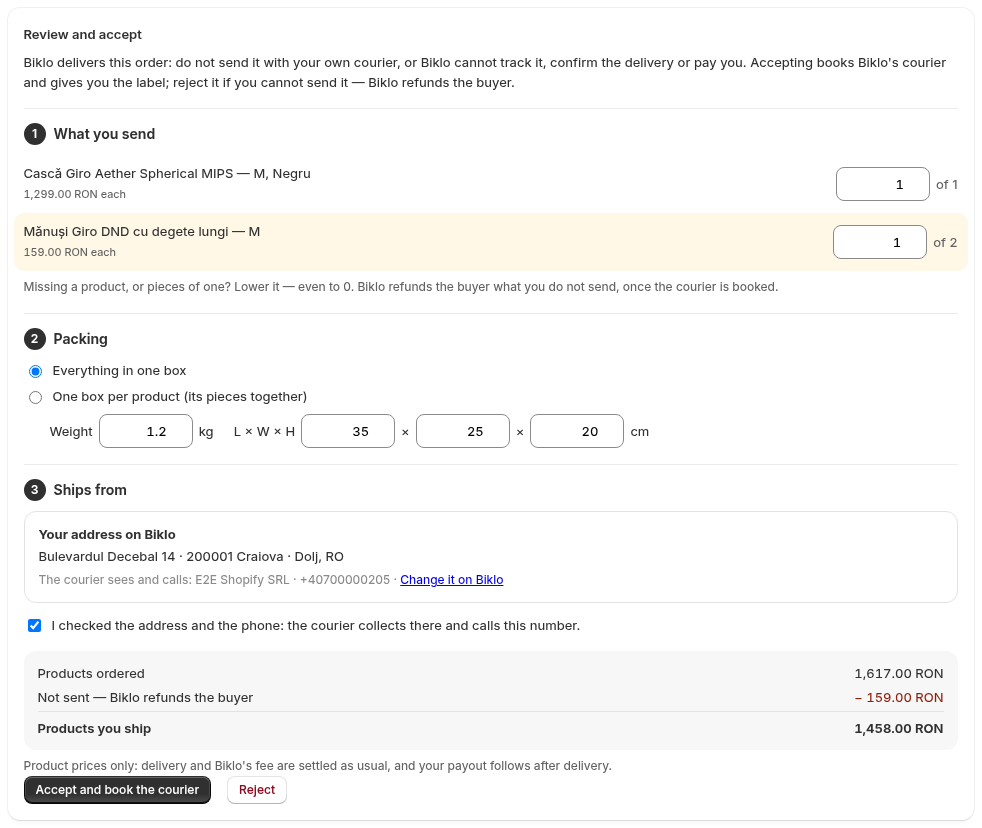
Review and accept is the last check before Biklo books its courier:
- What you send - lower a product if you are short, even to 0. Biklo refunds the buyer what you do not send.
- Packing - everything in one box (with its weight and size), or one box per product.
- Ships from - your address on Biklo or one of your pickup points, with the exact name and phone the courier gets. Change it on Biklo if something is wrong.
- The summary shows what ships and what the buyer gets back.
Tick I checked the address and the phone → Accept and book the courier.
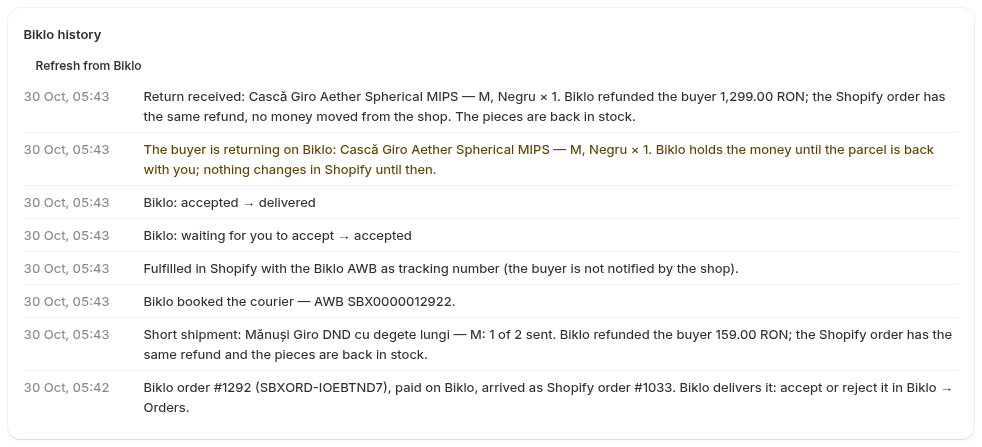
The courier is booked: print the Label (PDF) (or ZPL) - it opens in a new tab - stick it on the parcel and hand it to the courier. You can also send Biklo a link to your invoice for the buyer. The history shows everything that happened, in plain words.
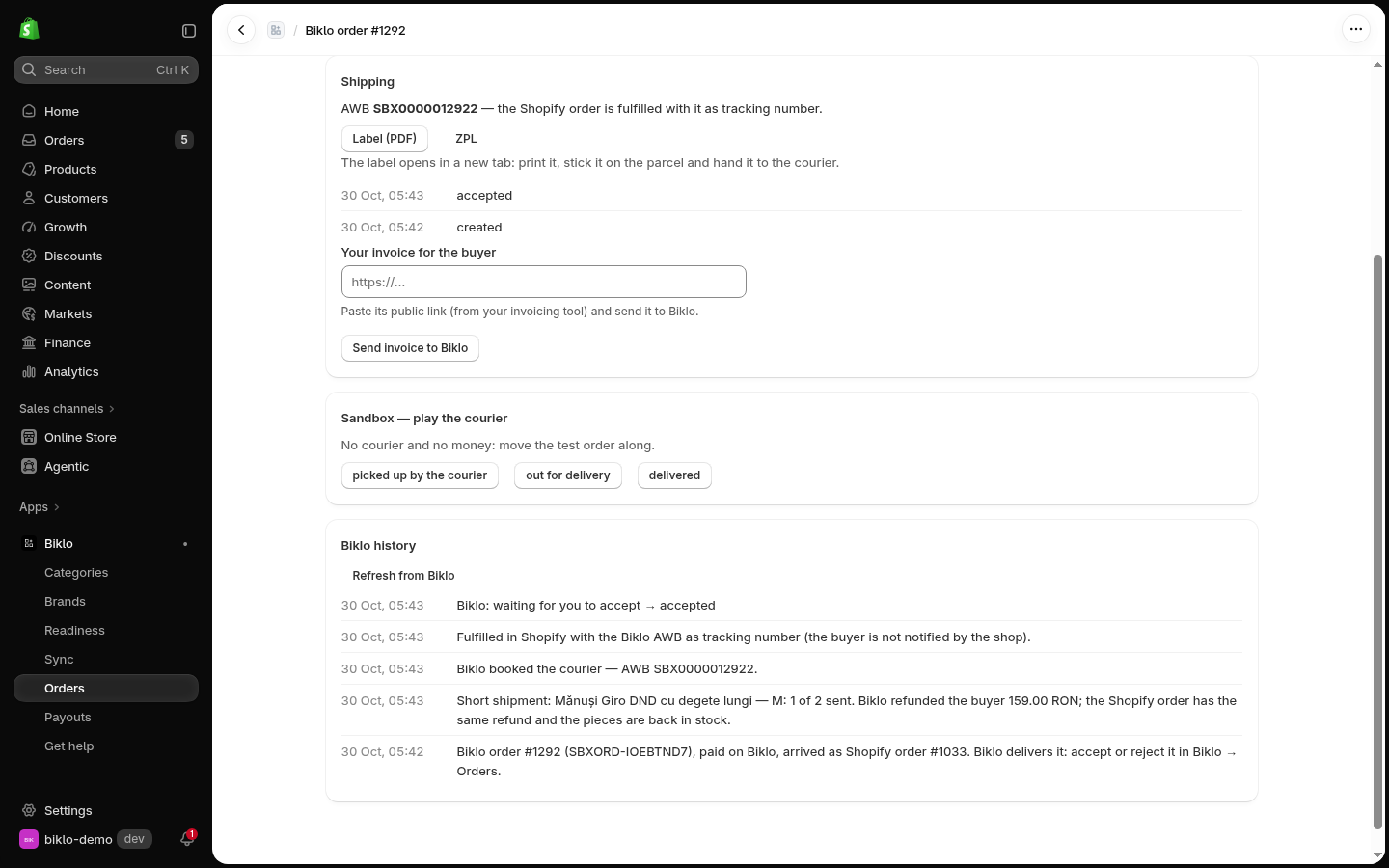
In Shopify the order is fulfilled with Biklo's tracking number. A piece you did not send is refunded in the Shopify order too, with its reason - no money moves from your store: Biklo refunded the buyer.
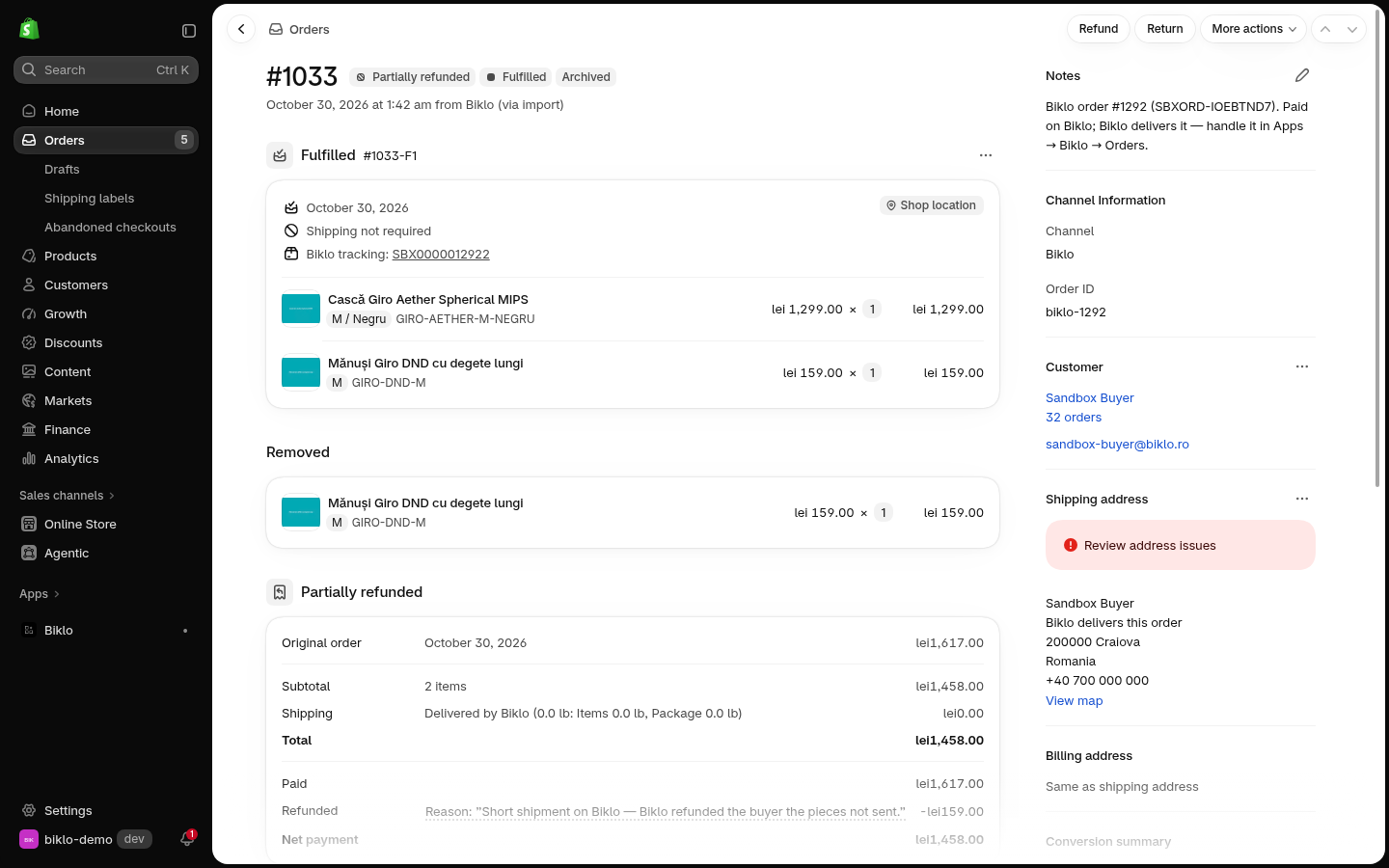
Cannot send it at all? Reject - Biklo refunds the buyer, and the Shopify order is cancelled with the stock back. When nothing of the order is in stock at all, the app rejects it for you.
Handle Biklo orders in Biklo → Orders, not with Shopify's own Refund, Cancel or Fulfil buttons: Biklo takes the payment, books the courier and refunds the buyer, and changes made only in Shopify do not reach Biklo.
Returns
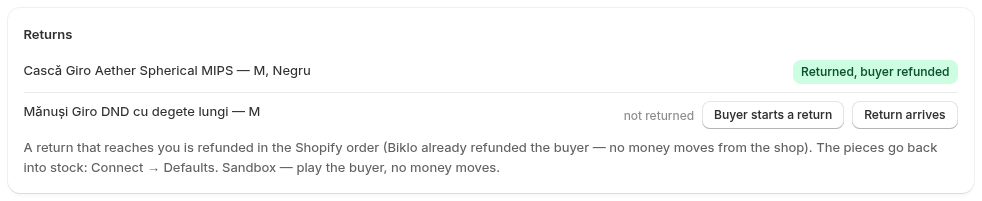
When the buyer returns something, the order page shows it, and Biklo holds the money meanwhile. When the parcel is back with you, the Returns section shows Back with you and Decide by … (48 hours), and Biklo → Orders says To do: check the returned product. Check it, then Accept the return (Biklo refunds the buyer) or Reject the return, saying what is wrong (the Biklo team decides). The Shopify order records exactly what happened: a refund of the product (back in stock unless you chose otherwise in Connect → Defaults), a refund of part of the price, or only a tag when there is no refund. Every case, step by step, with pictures: Returns.
9. Get paid
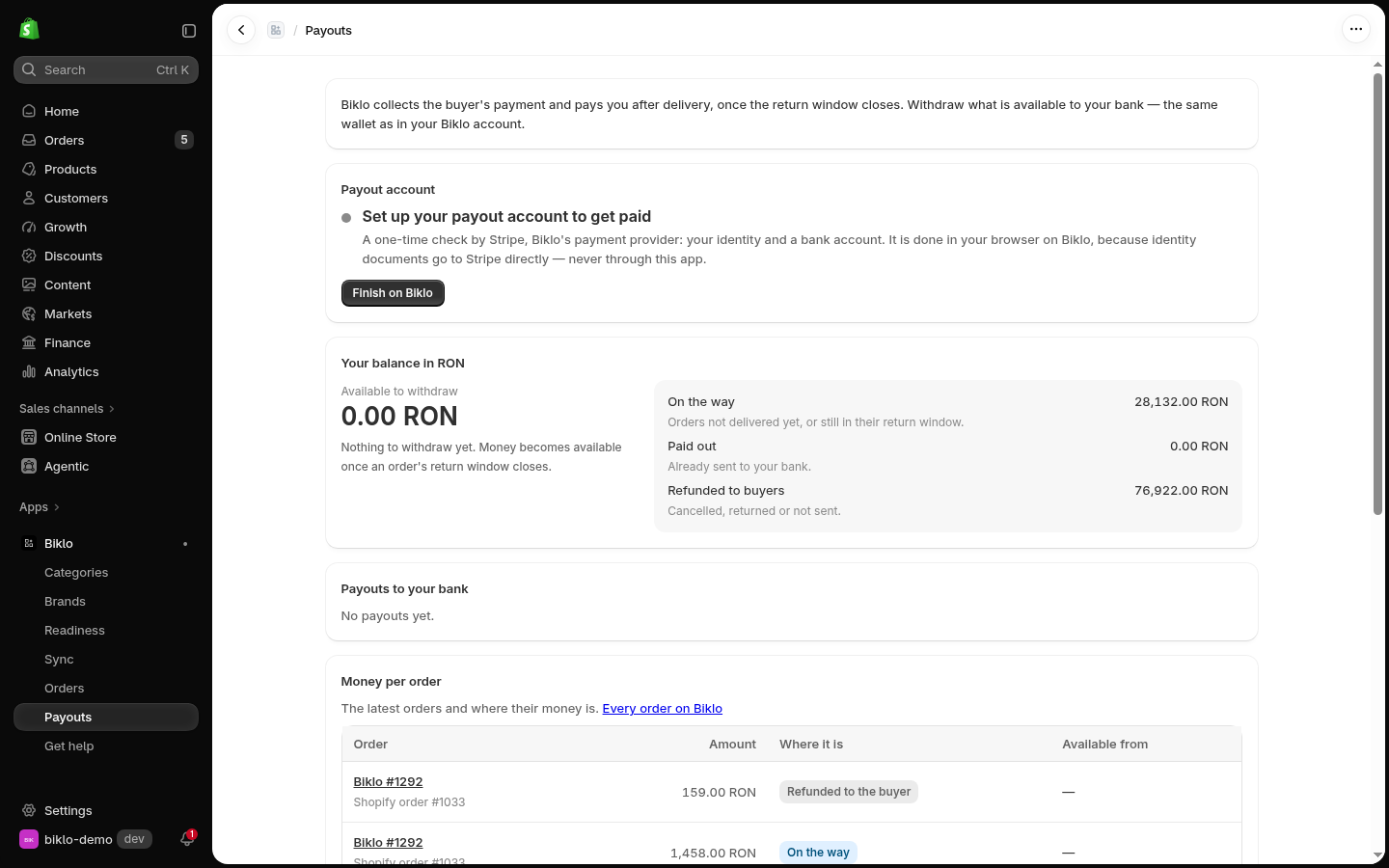
Biklo → Payouts. Biklo collects the buyer's payment and pays you after delivery, once the return window closes. The first time, finish your payout account on Biklo (a one-time identity check by Stripe, done in your browser): the card says exactly what is missing. Then your balance shows what is available; Withdraw sends it to your bank. Below: your payouts, and where each order's money is.
10. Going live
When everything works in the sandbox: create the live key on Biklo (bk_live_…),
paste it in Apps → Biklo (Connect), Save and test, then Biklo → Sync → Check
every product again. Your products are listed on the real marketplace.
Need help?
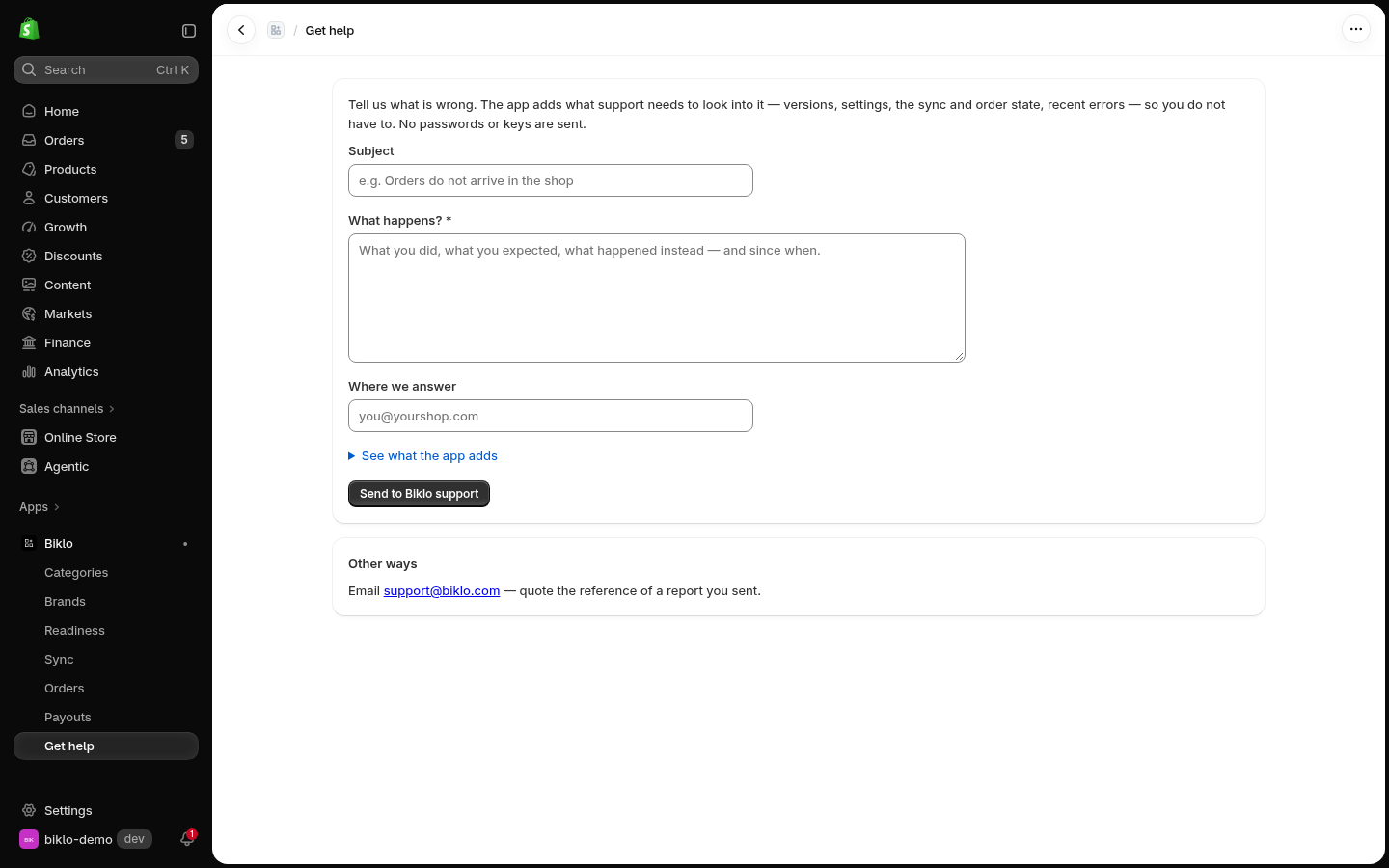
Get help is in the Biklo menu. Describe the problem: the app adds what our support needs - versions, settings, the sync and order state, recent errors, never your keys - and you can read it first (See what the app adds). You get a reference, and we answer by email.
The screenshots are taken in the Shopify admin of Biklo's demo store with the capture
scripts in dirtbike-integrations-dev/e2e/shopify/tutorial/, so they can be refreshed
whenever a screen changes.