Returns from Biklo buyers - step by step
On this page
A buyer who got a product through Biklo can send it back. Biklo handles the buyer and the money; you check the product when it is back with you and say whether it is fine. This page shows every way a return can go, and exactly what you see in CS-Cart at each step.
Nothing on this page moves money out of your shop. Biklo refunds the buyer from the money it holds for the order. CS-Cart has no refunds of its own, so the add-on records what Biklo refunded - in the Biklo box on the order (Refunded on Biklo, Biklo history) and in the order's products - so your orders and stock match what happened on Biklo.
← Back to the main guide
In short
| What happens | Who decides | What the buyer gets back | What CS-Cart records |
|---|---|---|---|
| You accept the return | you | the whole price | the product leaves the order, the pieces back in stock* |
| You reject it, the Biklo team refunds in full | Biklo team | the whole price | the same as accepting |
| You reject it, the Biklo team refunds part | Biklo team | part of the price | a refund of that amount in the Biklo box; the product stays on the order, nothing back in stock |
| You reject it, the Biklo team refunds nothing | Biklo team | nothing | no refund, a note - the money is yours |
| You do not decide within 48 hours | Biklo team | one of the three above | as above |
* unless you switched that off - see Before you start.
The money for the returned products stays held by Biklo from the moment the buyer starts the return until it is decided. It is not paid out to you meanwhile.
Before you start
Marketing → Biklo (Connect) → Returns: Put returned pieces back into stock. On by default. Untick it if you want to look at returned pieces yourself before they go back on sale; the order still records the refund, and you adjust the stock by hand.

This only applies to a full refund. After a partial refund, nothing goes back into stock automatically: a partial refund usually means the product came back damaged.
1. The buyer starts a return
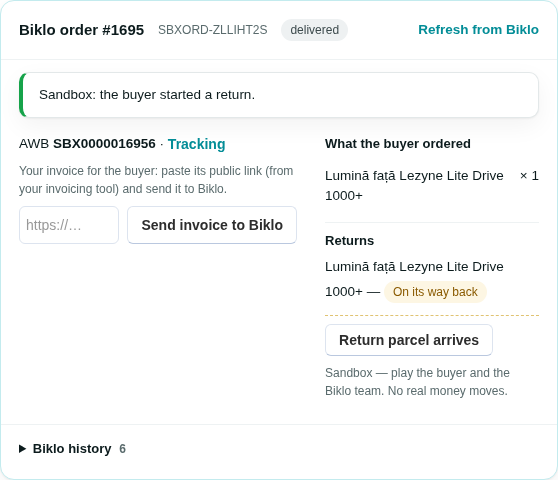
The order (already Complete) shows a Returns section in the Biklo box, with the product marked On its way back.
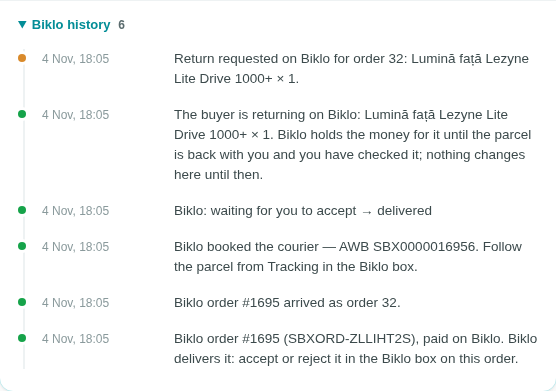
The box's Biklo history gets a note. There is nothing for you to do yet: wait for the parcel.
2. The parcel is back with you
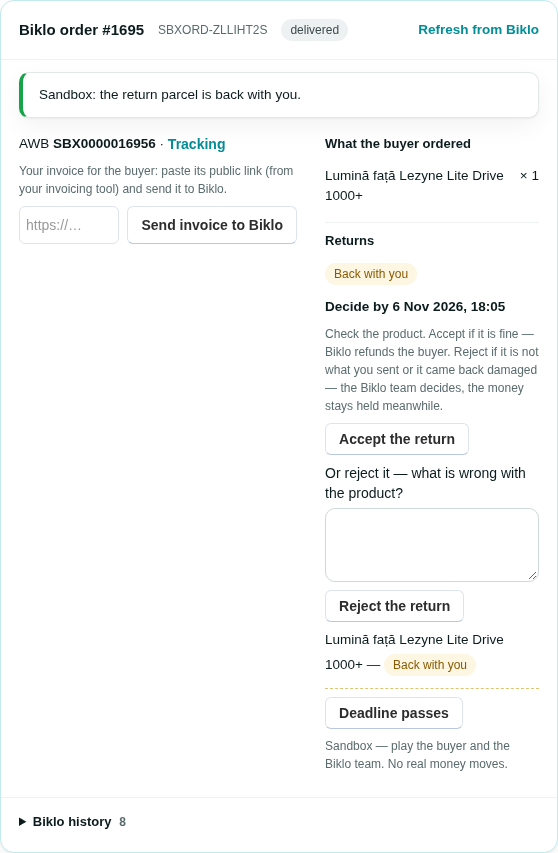
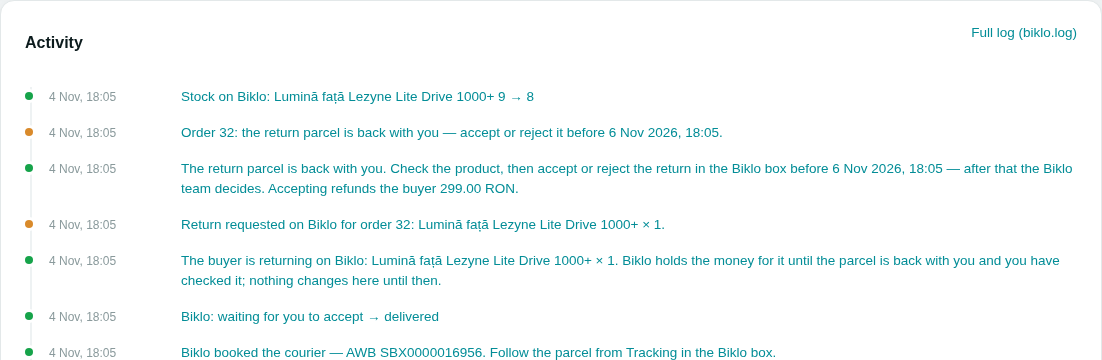
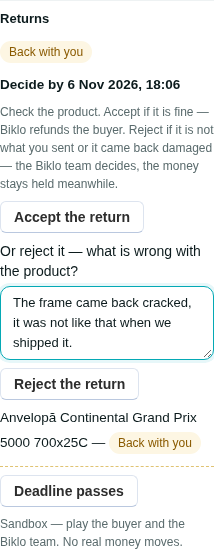
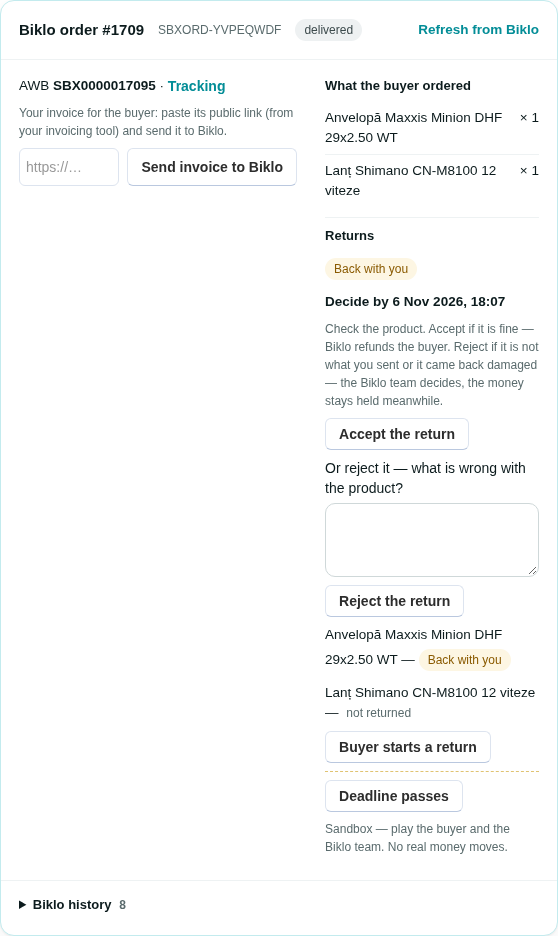
When the courier delivers the return parcel to you, the Biklo box shows Back with you and Decide by … - you have 48 hours.
You are told in three places, so it is hard to miss:
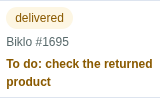
Orders → View orders, in the Biklo column: To do: check the returned product;
Biklo → Sync → Activity, an orange line naming the order and the deadline;
the Biklo history on the order.
Biklo also emails you reminders before the deadline.
Open the parcel and check the product. Then choose one of the two below.
3a. Accept the return
The product is fine: click Accept the return and confirm (Accept the return? Biklo refunds the buyer the returned products.).
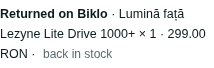
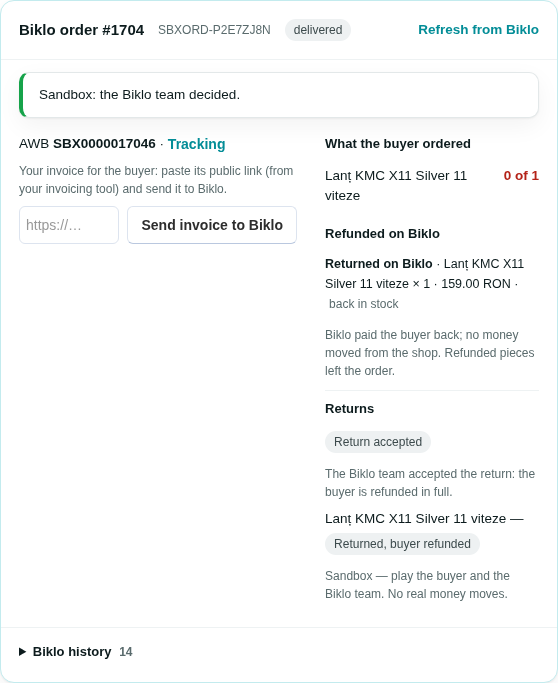
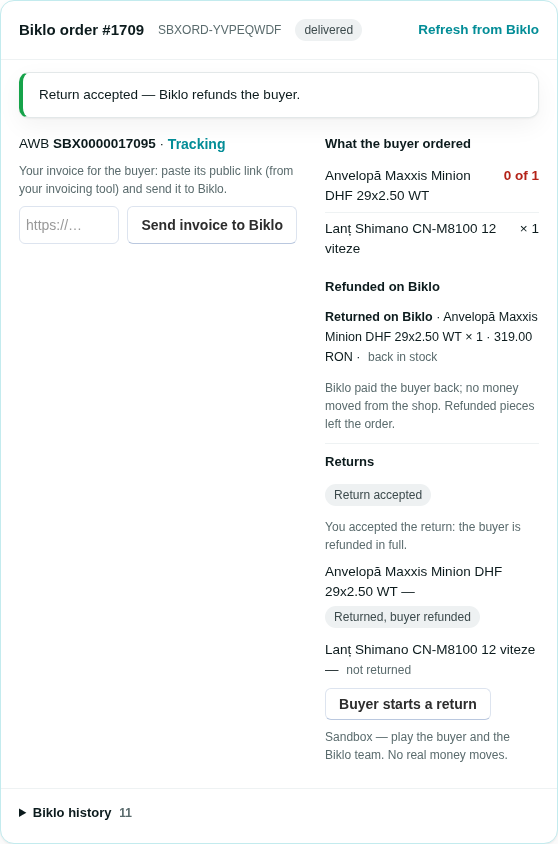
Biklo refunds the buyer. The Biklo box shows Return accepted, the product Returned, buyer refunded, and under Refunded on Biklo what was refunded and whether the pieces went back into stock:
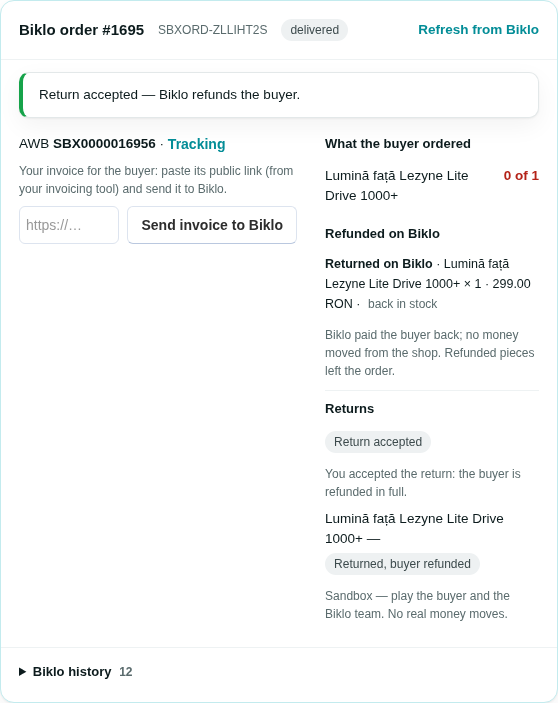
The product leaves the order - its quantity becomes 0 and the order total follows - and the piece goes back into stock (if the setting is on). When every product of the order was returned, the order becomes Refunded on Biklo.
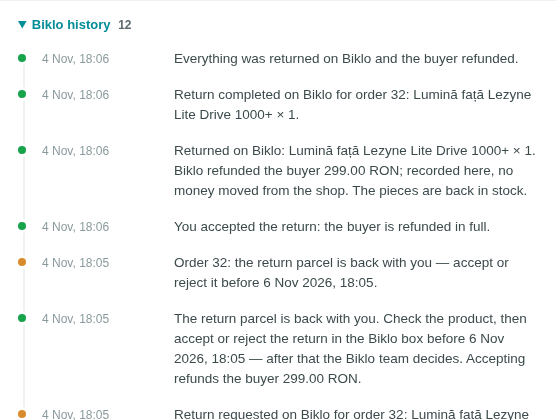
The Biklo history says what was recorded:
3b. Reject the return
The product is not what you sent, or it came back damaged. Write what is wrong in the box (at least 10 characters - the Biklo team reads it), then click Reject the return.
The Biklo box shows Rejected - the Biklo team decides. The money stays held; nothing is refunded yet, in CS-Cart or on Biklo.
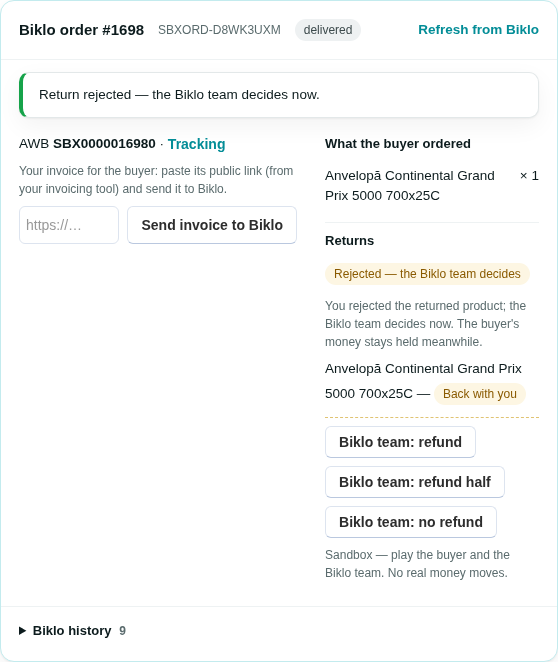
The Biklo team looks at your reason and the return, and decides. The order updates by itself when they do - one of the three endings below.
4. The Biklo team decides
Refunded in full
The Biklo team sided with the buyer. The order ends exactly as if you had accepted: the product leaves the order, back in stock (if the setting is on), Returned, buyer refunded.
Refunded in part
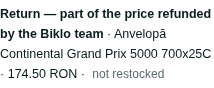
The buyer gets part of the price back (for example, the product came back used); the rest of the money is yours. The Biklo box shows Part refunded by the Biklo team with the amount, the product Returned, part refunded, and under Refunded on Biklo a refund of exactly that amount, not restocked:
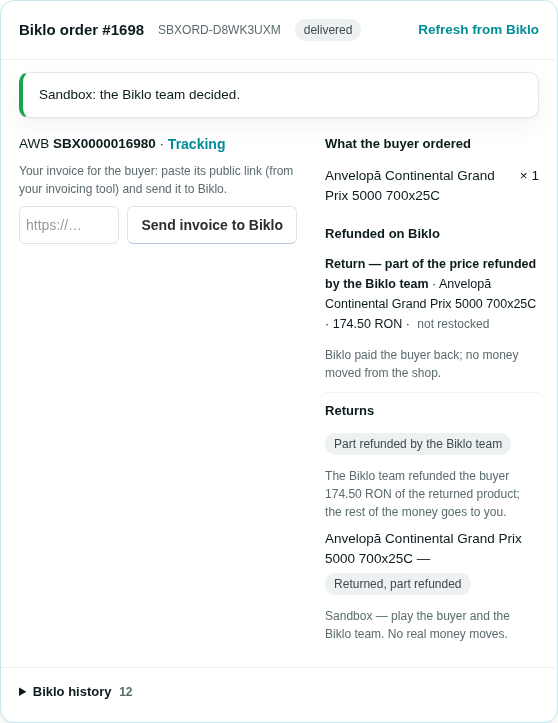
The order's products do not change - the product stays sold - and the order stays Complete:
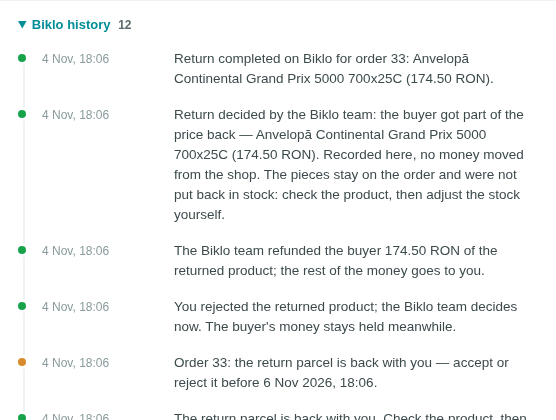
The history reminds you to check the product and adjust the stock yourself if it can be sold again:
No refund
The Biklo team agreed with you: the buyer gets nothing back, and the money is paid to you as for any order. The Biklo box shows No refund - decided by the Biklo team and the product Returned, no refund:
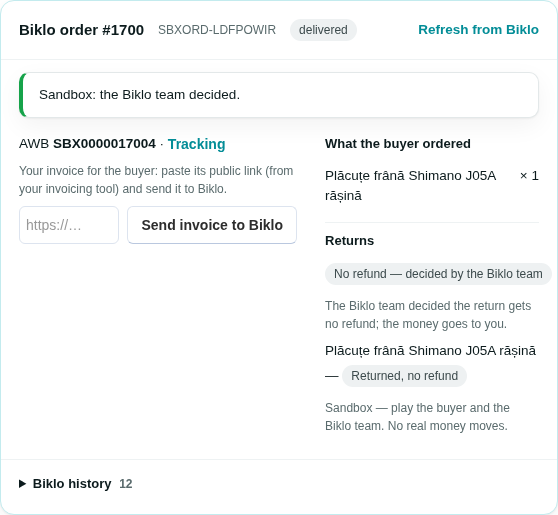
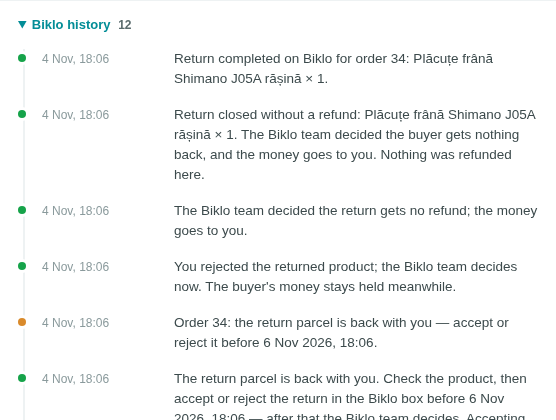
Nothing is refunded, the order stays Complete, and the history says so. The product is physically back with you - put it back in stock yourself if you want to sell it again.
5. If you do not decide in time
After 48 hours without a decision, Accept and Reject disappear and the Biklo box shows Not decided in time - the Biklo team decides. The Biklo team checks the return and decides as in step 4 - in full, in part, or no refund.
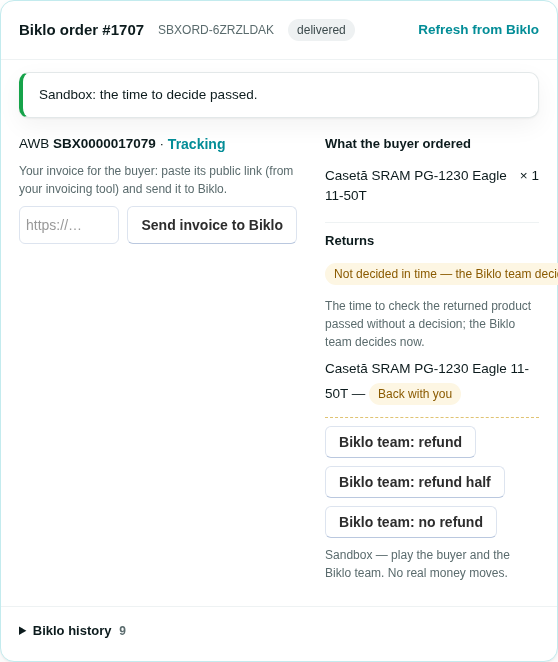
Decide in time whenever you can: you know the product best.
6. When only some products come back
A return is per product. If the order had several products and the buyer sends back only one, only that one shows Back with you; the others say not returned and are not touched.
Accepting refunds only the returned product: it shows 0 of 1 in What the buyer ordered, the other product stays, and the order stays Complete:
What you see, at a glance
| Moment | Biklo box | Product line | Refunded on Biklo | Stock | Order status |
|---|---|---|---|---|---|
| Buyer started the return | - | On its way back | - | - | Complete |
| Parcel back with you | Back with you · Decide by … | Back with you | - | - | Complete |
| You rejected it | Rejected - the Biklo team decides | Back with you | - | - | Complete |
| Deadline passed | Not decided in time - the Biklo team decides | Back with you | - | - | Complete |
| Accepted (by you or the Biklo team) | Return accepted | Returned, buyer refunded | the whole product; it leaves the order | back in stock* | Refunded on Biklo if nothing is left, else Complete |
| Part refunded by the Biklo team | Part refunded by the Biklo team | Returned, part refunded | that amount; the product stays | unchanged | Complete |
| No refund | No refund - decided by the Biklo team | Returned, no refund | - | unchanged | Complete |
* if Put returned pieces back into stock is on.
Try it in the sandbox
With a sandbox key (bk_test_…), the Biklo box has extra buttons that play the buyer, the
courier and the Biklo team, so you can walk through every case above on a test order. They
never appear with a live key.
- Create a test order (Biklo → Sync → Create a Biklo test order), accept it, and click the courier buttons until it is delivered.
- Buyer starts a return - next to the product.
- Return parcel arrives - now Accept or Reject it yourself.
- Optional: Deadline passes - to see what happens if you wait too long.
- After a rejection or a missed deadline: Biklo team: refund, Biklo team: refund half or Biklo team: no refund.
No real money moves in the sandbox, and no email or text message is sent.
Questions
Does the add-on take money from my shop or my payment provider? No. What it records is only a record; Biklo already refunded the buyer.
The order did not update. With the webhook set up (Marketing → Biklo → Orders from Biklo), a change arrives within seconds; without it, within 10 minutes. Refresh from Biklo in the Biklo box updates it right away.
I accepted by mistake. The buyer is refunded at once and that cannot be undone from the shop. Contact Biklo support with Get help.